


Power BI: load data based on date (month, year, etc.)
When I create a new dashboard and if I don’t need the full data, I like to load data for only some years, it can be:
- Last year and this year
- 2 years ago
- 3 years ago and the current year
- Etc.
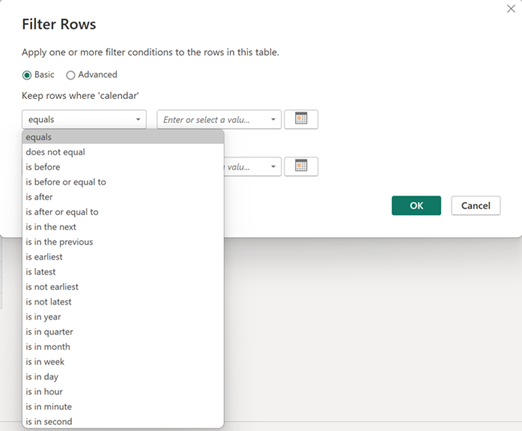
Of course, except the date, I can filter other conditions to reduce the size of my data (read this optional article Power BI: filter before loading data). So in the Power Query Editor, I have those options (left picture) and I will load only data from the last year (right picture):
 |
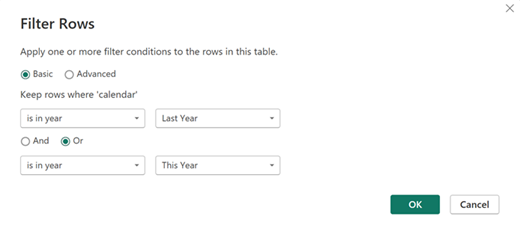 |
As you can see in the left picture, I could choose to filter by quarters, by days, by minutes, etc. On the right picture, I will always load 2 years of data in an automatic way but one of the missing things is an “explicit” option to load data of the previous 2 full year or more.
Before to continue, if the date column has the ISO 8601 format (yyyy-MM-ddTHH:mm:ssZ):
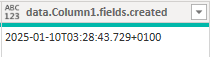
Those filters will not be available because it is formatted as “text” instead of “date/time”. To have it to the correct format, click on “transform -> extract -> text before delimiter”:
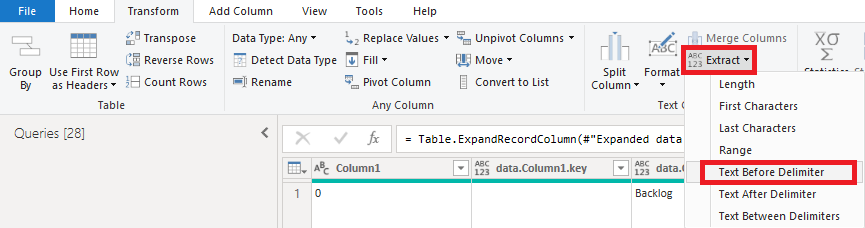
In the popup, put just a dot in the “delimiter” field then click “OK”:
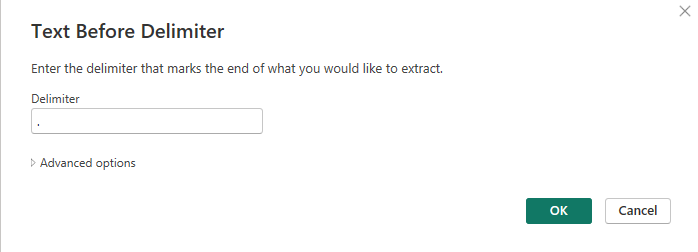
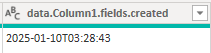
To end, click on “home -> data type -> date/time”:

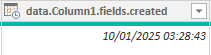
Back to my explanation to get the previous 2 full year or more. Choosing again “is in year”, I have those choices:
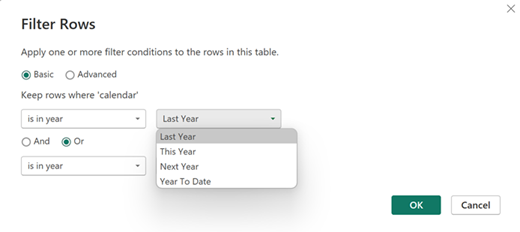
None are 2 years ago for instance. Same thing for the other options. I can use “is after” or “is after or equal to” and put the year I want:
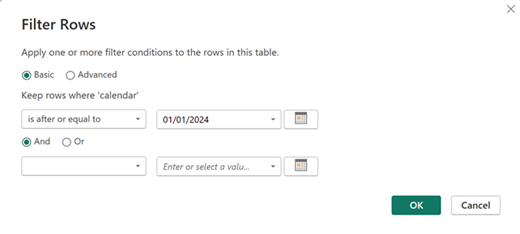
But in this case, Power BI will always load data from this date and in the future, if I need to reduce the size of my data again, I have to change it manually. For an automatic update, I will use “is in the previous”:
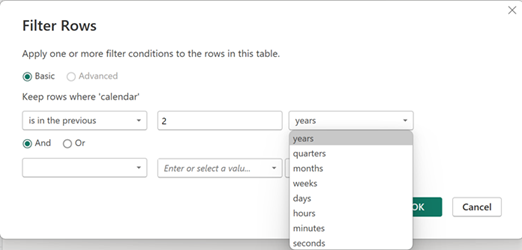
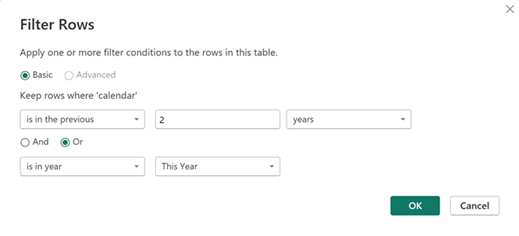
Using only this option, I will have only data of the last 2 years which doesn’t include the current year, to remediate it, I will add the “is in year” one like that:
What about 18 months with this option ? In this case, I will get only the last 18 months and to include the current month, I will add the “is in month = this month”:
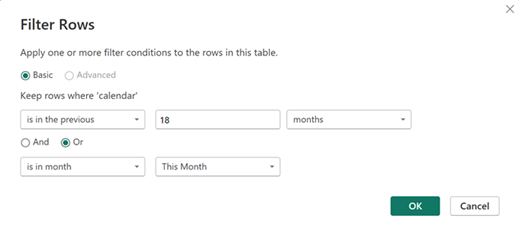
Same logic applies for the other selections of “is in the previous”.
Amongst the options, there is no way to filter a specific date except to put it manually, for instance, if I want to filter all data of 2022, I have to select “2022” so I can’t select something like “YEAR - 3” but there is a way to do it. I will select “year -> this year”:

Then in the formula bar, replace the red section with: Date.Year([argument]) = Date.Year(DateTime.LocalNow())-number


NOTE:
- Replace “argument” and “number” by yours
- For quarter: Date.QuarterOfYear([argument]) = Date.QuarterOfYear(Date.AddQuarters(Date.From(DateTime.LocalNow()),-1))
- For month: Date.Month([argument]) = Date.Month(Date.AddMonths(Date.From(DateTime.LocalNow()),-number))
- For week: Date.WeekOfYear([argument]) = Date.WeekOfYear(Date.AddWeeks(Date.From(DateTime.LocalNow()),-number))
- For day: [argument] = Date.AddDays(Date.From(DateTime.LocalNow()),-number)
If I want between years, take the red section:

And put it in its corresponding section in this formula: List.Contains({red section, red section},Date.Year([argument]))

For quarter, month, week and day, just do the same process.
Interesting Topics
-

Be successfully certified ITIL 4 Managing Professional
Study, study and study, I couldn’t be successfully certified without studying it, if you are interested...
-
Be successfully certified ITIL 4 Strategic Leader
With my ITIL 4 Managing Professional certification (ITIL MP) in the pocket, it was time to go for the...
-

Hide visual and change background color based on selection
Some small tricks to customize the background colour of a text box...
-
Stacked and clustered column chart or double stacked column chart
In excel, I use a lot the combination of clustered and stacked chart...
-

Refresh Power BI
From the Power BI Service, I can set refresh but, for instance, there is no option to do it monthly or each time a change is made...
-
Power BI alerts to be sent by email from an excel file based on condition
I will explain how to send a list of emails from an excel file after creating alerts...
-

Count and check empty cells of filtered columns using a macro in an excel report
I use this macro to check if there are blank cells after I filtered...
-
Delete rows out of date using a macro in an excel report
In most of the reports, when I am doing the monthly one, I just need to keep all data that are in the month...
-
Find a specific value then insert a row and more things using a macro in an excel report
This VBA allows me to look for a specific value, it can be...
-
Execute a macro based on the day or time in an excel report
In some excel files, I am using a macro to tell it in which moment to do the report. For instance, if I am...
-
List unique values then combine in one single cell all data using a macro in an excel report
In one of my reports, I have to list from a column the unique values...
-

Copy/paste a range of values after finding the current date in an excel report
This script is to check and compare each cell of a specific column to...
-
Insert a row after finding a specific value in an excel report
This script allows to search a particular value, once find it, a new row will be inserted above or below...
-
Copy data between 2 sheets on top or bottom using an office script in an excel report
This online script allows me to copy the full data of a table to another...
-
Use a script to copy, cut, paste, replace and delete in an excel report (part 2)
This is the second part of my tutorial and it will be focused on...
-
Autofill from the last row using an office script in an excel report
This script will look for the last row then it will copy and paste the data to a number of rows below...
-

Calculate a weighted average for a SLA and a conversation time with a formula in an excel report
In one of my experiences, I had a tool that gave me the weighted average...
-
Search in different sheets then display the wanted data with a formula in an excel report
vlookup and hlookup are formulas that allow to search a data in another...
-
Find the good data by matching 3 different criterias with a formula in an excel report
It is a combination of “index” and “match” formulas, much better...
-
Sum and count sales with a formula in an excel report
Extracting data from salesforce or qlikview may not give the information I needed, it already happened...
Know how long a service is impacted with a formula in an excel report
It is important to know how long the service has been impacted by...