


Power BI: dashboard stops to work after the data source name has been changed
When my data source has a name with a date or date/time (for instance, an excel file with name: test data 17.01.2026.xlsx or test data 17.01.2026 15_47_59.xlsx) and every month, in the sharepoint folder, either I have to replace it with the last month or I will upload the last month file, in both situations, my dashboard will stop to work and to resolve it, I will have to update it manually. In this article, I will explain different ways to do it automatically and I will have to edit the code in “home -> advanced editor” in Power BI Query:
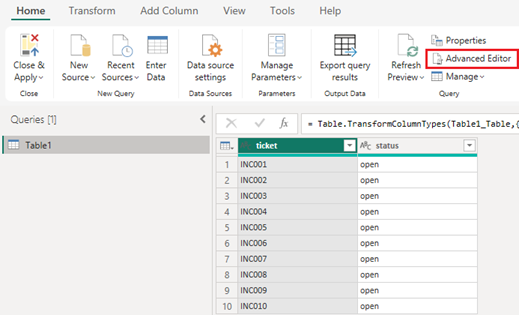
Before to start, in the original code, copy what I highlight in green:
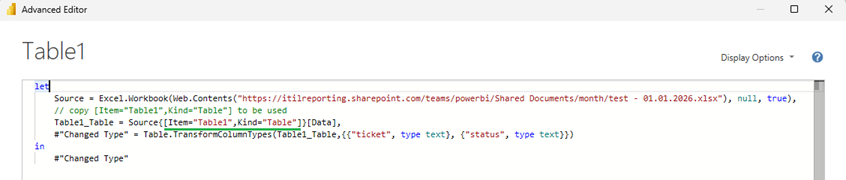
IMPORTANT: make sure that the file starts with an unique name because if in the folder, there are other files and subfolders which start with the same name, it will not work properly. For instance, in the same folder:
- I have a subfolder with name “test” (conflict)
- I have a file with name “test for unix.xlsx” (conflict)
- I have another file with name “check test ticket.xlsx” (all good)
In this case, in the code, I will reference my file as “test data“ (unique) and not “test” (conflict)
NOTE: after changing the code, do a refresh by clicking on “home -> refresh preview” if not, the updated new data will not display

Option 1: only 1 single file
I have one unique file meaning that every month, I will replace the old one.
let
    // change www by yours
    FolderSource = SharePoint.Files("https://www",[ApiVersion=15]),
    // change xxx (no need to put the full file name) and yyy by yours
    FileSource = Table.SelectRows(FolderSource,each Text.StartsWith([Name], "xxx") and Text.Contains([Folder Path], "/Shared Documents/yyy/")),
    Source = Excel.Workbook(FileSource{0}[Content], null, true),
    // change zzz by yours
    DataSource = Source{zzz}[Data]
in
    DataSource
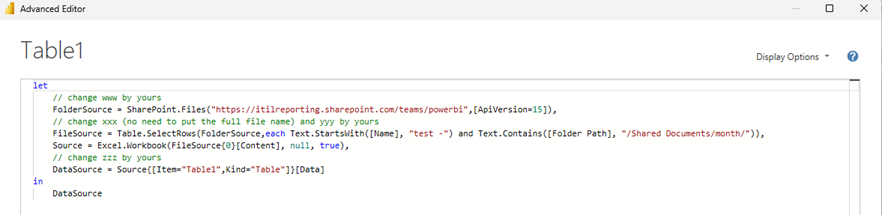
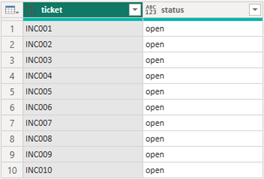
Option 2: fetch the last one (current month)
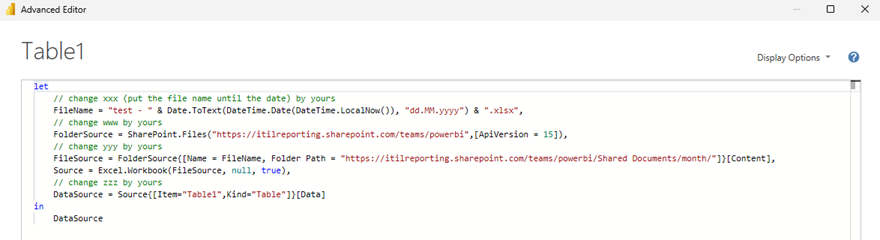
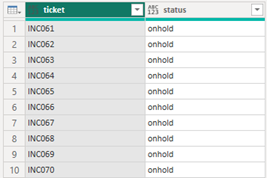
I have multiple files so it will update the last one which is the current month. For instance, the current month is August.
let
    // change xxx (put the file name until the date) by yours
    FileName = "xxx" & Date.ToText(DateTime.Date(DateTime.LocalNow()), "dd.MM.yyyy") & ".xlsx",
    // change www by yours
    FolderSource = SharePoint.Files("https://www",[ApiVersion = 15]),
    // change yyy by yours
    FileSource = FolderSource{[Name = FileName, Folder Path = "https://yyy"]}[Content],
    Source = Excel.Workbook(FileSource, null, true),
    // change zzz by yours
    DataSource = Source{zzz}[Data]
in
    DataSource
Option 3: fetch the last updated one based on the sharepoint modified date
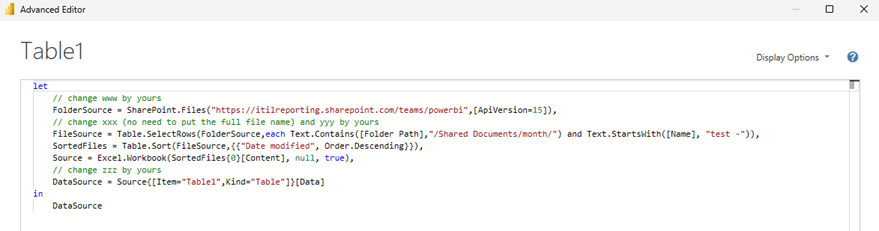
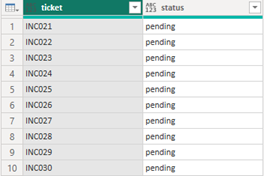
I have multiple files so it will update the last modified one in the list. For instance the last one is March and the current month (August) is not in the sharepoint but I updated data of February.
let
    // change www by yours
    FolderSource = SharePoint.Files("https://www",[ApiVersion=15]),
    // change xxx (no need to put the full file name) and yyy by yours
    FileSource = Table.SelectRows(FolderSource,each Text.Contains([Folder Path],"/Shared Documents/yyy/") and Text.StartsWith([Name], "xxx")),
    SortedFiles = Table.Sort(FileSource,{{"Date modified", Order.Descending}}),
    Source = Excel.Workbook(SortedFiles{0}[Content], null, true),
    // change zzz by yours
    DataSource = Source{zzz}[Data],
    AddFileName = Table.AddColumn(DataSource, "FileName", each SortedFiles{0}[Name], type text),
    AddFileModifiedDateTime = Table.AddColumn(AddFileName, "FileModifiedDateTime", each SortedFiles{0}[Date modified], type datetime)
in
    AddFileModifiedDateTime
Option 4: fetch the last one in the list
I have multiple files so it will update the last one in the list and not the current month. For instance the last one is March and currently, the month is August and the current month file is not in the sharepoint.
let
    // change www by yours
    FolderSource = SharePoint.Files("https://www",[ApiVersion = 15]),
    // change yyy by yours
    FileSource = Table.SelectRows(FolderSource, each [Folder Path] = "https://yyy"),
    // change xxx1 (no need to put the full file name) by yours
    FilterFiles = Table.SelectRows(FileSource, each Text.StartsWith([Name], "xxx1") and Text.EndsWith([Name], ".xlsx")),
    // change xxx2 (put some characters of the file name before the date) by yours
    AddFileDate = Table.AddColumn(FilterFiles,"FileDate", each Date.FromText(Text.BetweenDelimiters([Name], "xxx2", ".xlsx"),[Format = "dd.MM.yyyy"]), type date),
    SortedFiles = Table.Sort(AddFileDate, {{"FileDate", Order.Descending}}){0},
    Source = Excel.Workbook(SortedFiles[Content], null, true),
    // change zzz by yours
    DataSource = Source{zzz}[Data],
    AddFileName = Table.AddColumn(DataSource, "FileName", each SortedFiles[Name], type text)
in
    AddFileName
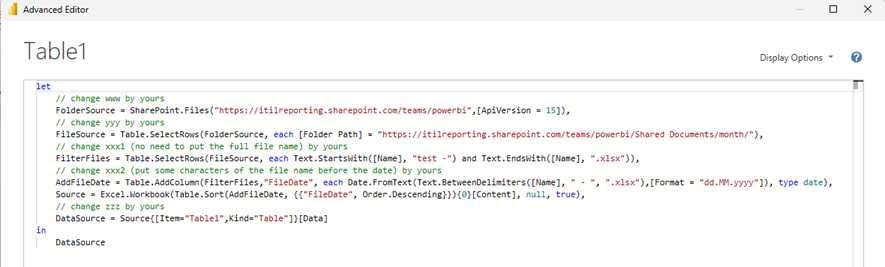
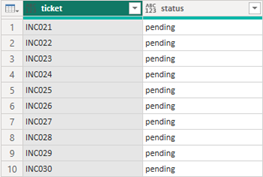
If my file name includes the time (test data 17.01.2026 15_47_54.xlsx), use this code:
let
    // change www by yours
    FolderSource = SharePoint.Files("https://www",[ApiVersion = 15]),
    // change yyy by yours
    FileSource = Table.SelectRows(FolderSource, each [Folder Path] = "https://yyy"),
    // change xxx1 (no need to put the full file name) by yours
    FilterFiles = Table.SelectRows(FileSource, each Text.StartsWith([Name], "xxx1") and Text.EndsWith([Name], ".xlsx")),
    // change xxx2 (put some characters of the file name before the date) and xxx3 by yours
    AddFileDate = Table.AddColumn(FilterFiles,"FileDateTime", each DateTime.FromText(Text.Replace(Text.BetweenDelimiters([Name], "xxx2", ".xlsx"),"xxx3",":"),[Format = "dd.MM.yyyy HH:mm:ss"]), type datetime),
    LatestFile = Table.Sort(AddFileDate, {{"FileDateTime", Order.Descending}}){0},
    Source = Excel.Workbook(LatestFile[Content], null, true),
    // change zzz by yours
    DataSource = Source{zzz}[Data],
    AddFileName = Table.AddColumn(DataSource, "FileName", each LatestFile[Name], type text),
    AddFileDateTime = Table.AddColumn(AddFileName, "FileDateTime", each LatestFile[FileDateTime], type datetime)
in
    AddFileDateTime
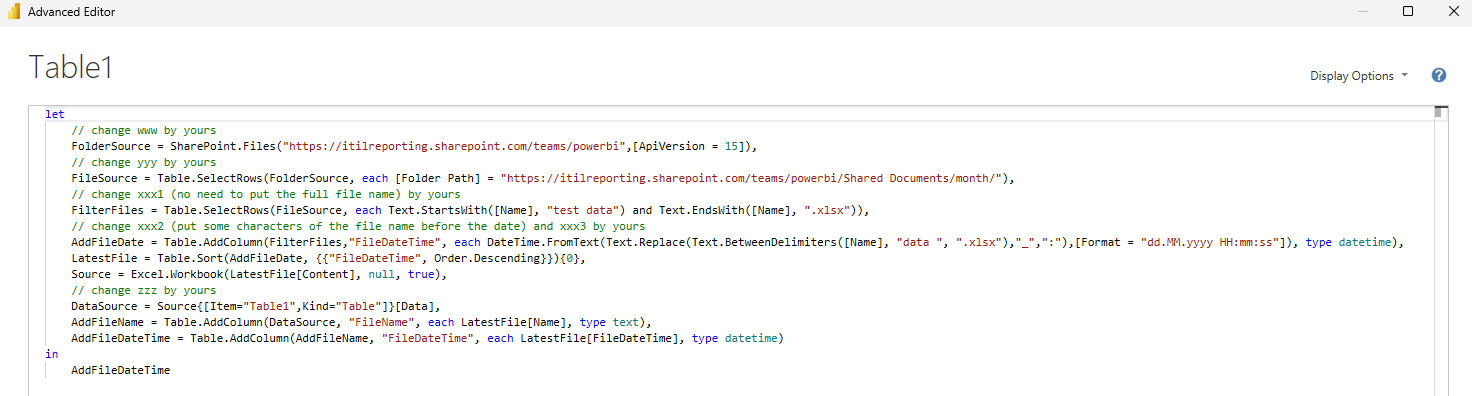
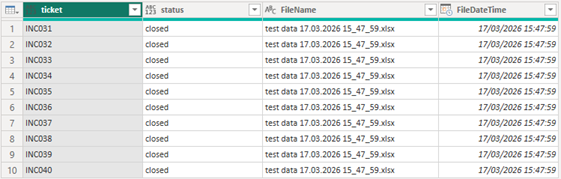
The time format is in 24 hours, if you want it in 12 hours, change it from HH:mm:ss to hh:mm:ss. To include AM/PM:
- 03:47:54 PM, "dd-MM-yyyy hh:mm:ss tt"
- 03:47:54PM, "dd-MM-yyyy hh:mm:ss" & "tt"
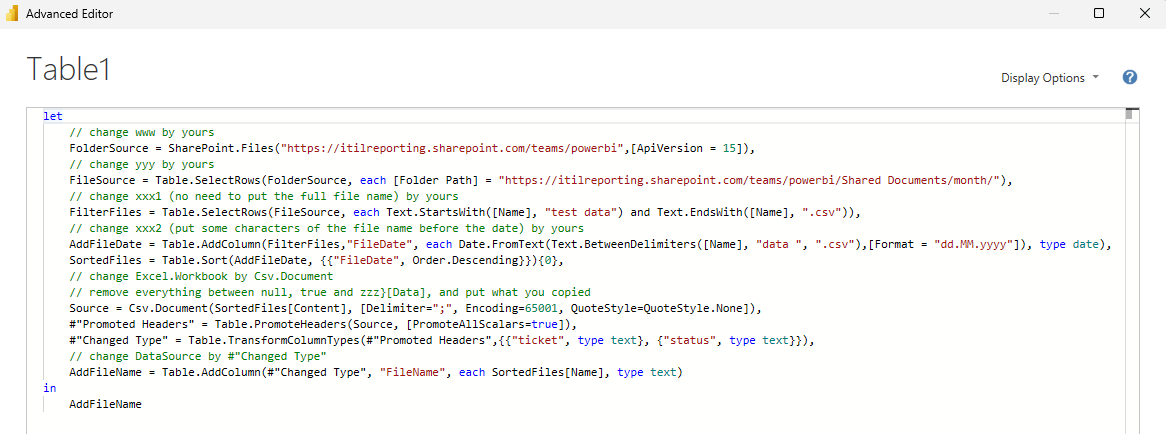
Now if the file is in the csv format, the code should be modified so first, as for the xlsx format, I have to copy some lines from the original code:

NOTE: do not copy the “column” part, if not, new columns will not be included
For my example, I will use the code with date only (the process is the same for date/time), in the picture, follow the instructions:
Interesting Topics
-

Be successfully certified ITIL 4 Managing Professional
Study, study and study, I couldn’t be successfully certified without studying it, if you are interested...
-
Be successfully certified ITIL 4 Strategic Leader
With my ITIL 4 Managing Professional certification (ITIL MP) in the pocket, it was time to go for the...
-

Hide visual and change background color based on selection
Some small tricks to customize the background colour of a text box...
-
Stacked and clustered column chart or double stacked column chart
In excel, I use a lot the combination of clustered and stacked chart...
-

Refresh Power BI
From the Power BI Service, I can set refresh but, for instance, there is no option to do it monthly or each time a change is made...
-
Power BI alerts to be sent by email from an excel file based on condition
I will explain how to send a list of emails from an excel file after creating alerts...
-

Count and check empty cells of filtered columns using a macro in an excel report
I use this macro to check if there are blank cells after I filtered...
-
Delete rows out of date using a macro in an excel report
In most of the reports, when I am doing the monthly one, I just need to keep all data that are in the month...
-
Find a specific value then insert a row and more things using a macro in an excel report
This VBA allows me to look for a specific value, it can be...
-
Execute a macro based on the day or time in an excel report
In some excel files, I am using a macro to tell it in which moment to do the report. For instance, if I am...
-
List unique values then combine in one single cell all data using a macro in an excel report
In one of my reports, I have to list from a column the unique values...
-

Copy/paste a range of values after finding the current date in an excel report
This script is to check and compare each cell of a specific column to...
-
Insert a row after finding a specific value in an excel report
This script allows to search a particular value, once find it, a new row will be inserted above or below...
-
Copy data between 2 sheets on top or bottom using an office script in an excel report
This online script allows me to copy the full data of a table to another...
-
Use a script to copy, cut, paste, replace and delete in an excel report (part 2)
This is the second part of my tutorial and it will be focused on...
-
Autofill from the last row using an office script in an excel report
This script will look for the last row then it will copy and paste the data to a number of rows below...
-

Calculate a weighted average for a SLA and a conversation time with a formula in an excel report
In one of my experiences, I had a tool that gave me the weighted average...
-
Search in different sheets then display the wanted data with a formula in an excel report
vlookup and hlookup are formulas that allow to search a data in another...
-
Find the good data by matching 3 different criterias with a formula in an excel report
It is a combination of “index” and “match” formulas, much better...
-
Sum and count sales with a formula in an excel report
Extracting data from salesforce or qlikview may not give the information I needed, it already happened...
Know how long a service is impacted with a formula in an excel report
It is important to know how long the service has been impacted by...