


Power BI: connect to the Jira API V3 history database
Contrary to ServiceNow, in Jira, there is no history table to get the history of all tickets but there is a workaround. Before to begin, to connect to the database, I have to be “admin” or “owner” of the Jira project and I need my email and my token (to create the token, read Manage API tokens for your Atlassian account). Take note that there is no need to convert your API token into BASE64 encode.
In their official webpage, using the changelog API, it allows to get it for 1 ticket:
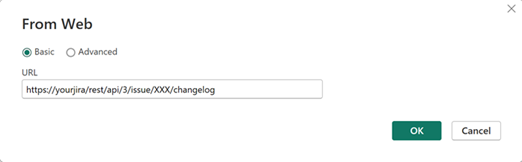
URL/rest/api/3/issue/XXX/changelog
- URL for API token with scopes:
https://api.atlassian.com/ex/jira/yourcloudid

- URL for API token without scopes:
https://yourjira

NOTE:
- To not repeat everything in double, for this article, I will use the second URL
- Change yourjira and yourcloudid by yours and XXX by your ticket key or ID. To get the cloudid, put this in a browser: https://yourjira/_edge/tenant_info
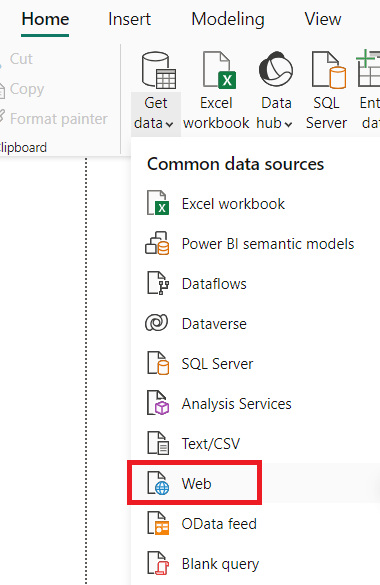
Open Power BI and click on “home -> get data -> web” then put the url:
 |
 |
This method is feasible for very few tickets. For a small/big database, I will use the same API by modifying it a little. I will explain 2 ways to do it, manually or automatically. The first steps are for both.
Click on “home -> get data -> blank query”:

It will open Power Query Editor then click on “advanced editor”:
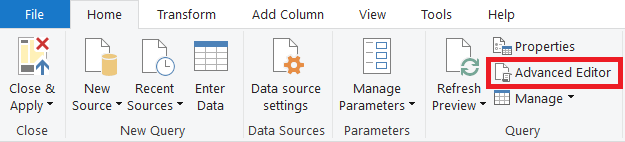
Delete everything:

Option 1 with a manual ticket list
Put the following code and follow the instructions in the code:
let
    // URL for API token with scopes: https://api.atlassian.com/ex/jira/yourcloudid
    // URL for API token without scopes: https://yourjira
    // change yourjira, yourcloudid, youremail and yourtoken by yours
    AuthResponse = (k as text) as record => Json.Document(Web.Contents("URL", [RelativePath = "/rest/api/3/issue/" & k & "/changelog",Headers = [Accept = "application/json",
        Referer = "Basic " & Binary.ToText(Text.ToBinary("youremail" &":"& "yourtoken"),BinaryEncoding.Base64)]])),
    // change "XXX" by your ticket list -> "TEST-1", "TEST-2"
    Source = List.Transform({"XXX"},
        each [issues.key = _, Column1 = AuthResponse(_)]),
    #"Converted to Table" = Table.FromRecords(Source)
in
    #"Converted to Table"
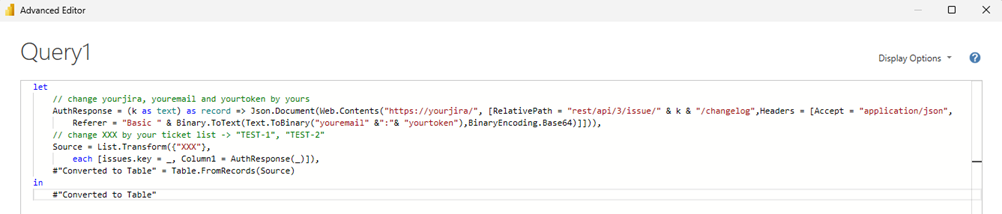
Expand the column by clicking on this icon:
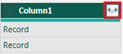
Click on “load more” then “OK”:
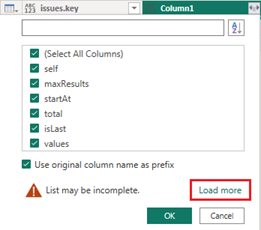
Option 2 with an automatic ticket list
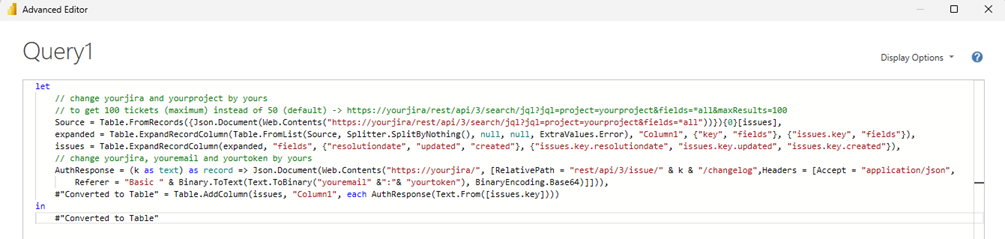
This code will give me the last 50 (default) or 100 (maximum) tickets for the project:
let
    // URL for API token with scopes: https://api.atlassian.com/ex/jira/yourcloudid
    // URL for API token without scopes: https://yourjira
    // change yourjira, yourcloudid and yourprojectkey by yours
    // to get 100 tickets (maximum) instead of 50 (default) -> URL/rest/api/3/search/jql?jql=project=yourprojectkey&fields=*all&maxResults=100
    Source = Table.FromRecords({Json.Document(Web.Contents("URL/rest/api/3/search/jql?jql=project=yourprojectkey&fields=*all"))}){0}[issues],
    expanded = Table.ExpandRecordColumn(Table.FromList(Source, Splitter.SplitByNothing(), null, null, ExtraValues.Error), "Column1", {"key", "fields"}, {"issues.key", "fields"}),
    issues = Table.ExpandRecordColumn(expanded, "fields", {"resolutiondate", "updated", "created"}, {"issues.key.resolutiondate", "issues.key.updated", "issues.key.created"}),
    // change URL, youremail and yourtoken by yours
    AuthResponse = (k as text) as record => Json.Document(Web.Contents("URL", [RelativePath = "/rest/api/3/issue/" & k & "/changelog",Headers = [Accept = "application/json",
        Referer = "Basic " & Binary.ToText(Text.ToBinary("youremail" &":"& "yourtoken"), BinaryEncoding.Base64)]])),
    #"Converted to Table" = Table.AddColumn(issues, "Column1", each AuthResponse(Text.From([issues.key])))
in
    #"Converted to Table"
This code will give me all tickets for the project:
let
    // URL for API token with scopes: https://api.atlassian.com/ex/jira/yourcloudid
    // URL for API token without scopes: https://yourjira
    // change yourjira, yourcloudid and yourprojectkey by yours
    GetPage = (optional nextPageToken as text) => let Url = "URL", relativePath = if nextPageToken = null or nextPageToken = ""
        then "/rest/api/3/search/jql?jql=project=yourprojectkey&maxResults=100&fields=*all"
        else "/rest/api/3/search/jql?jql=project=yourprojectkey&maxResults=100&fields=*all&nextPageToken=" & nextPageToken,
        Response = Json.Document(Web.Contents(Url, [RelativePath = relativePath])), Issues = try Response[issues] otherwise {}, NextToken = try Response[nextPageToken] otherwise null,
        Result = [Issues = Issues, NextToken = NextToken] in Result,
    GetAllPages = (nextPageToken as nullable text) as list => let CurrentPage = GetPage(nextPageToken), CurrentIssues = CurrentPage[Issues], NextToken = CurrentPage[NextToken],
        MoreIssues = if NextToken <> null then @GetAllPages(NextToken) else {}, Combined = List.Combine({CurrentIssues, MoreIssues}) in Combined,
    expanded = Table.ExpandRecordColumn(Table.FromList(GetAllPages(null), Splitter.SplitByNothing(), null, null, ExtraValues.Error), "Column1", {"key", "fields"}, {"issues.key", "fields"}),
    issues = Table.ExpandRecordColumn(expanded, "fields", {"resolutiondate", "updated", "created"}, {"issues.key.resolutiondate", "issues.key.updated", "issues.key.created"}),
    // change URL, youremail and yourtoken by yours
    AuthResponse = (k as text) as record => Json.Document(Web.Contents("URL", [RelativePath = "/rest/api/3/issue/" & k & "/changelog",Headers = [Accept = "application/json",
        Referer = "Basic " & Binary.ToText(Text.ToBinary("youremail" &":"& "yourtoken"), BinaryEncoding.Base64)]])),
    #"Converted to Table" = Table.AddColumn(issues, "Column1", each AuthResponse(Text.From([issues.key])))
in
    #"Converted to Table"
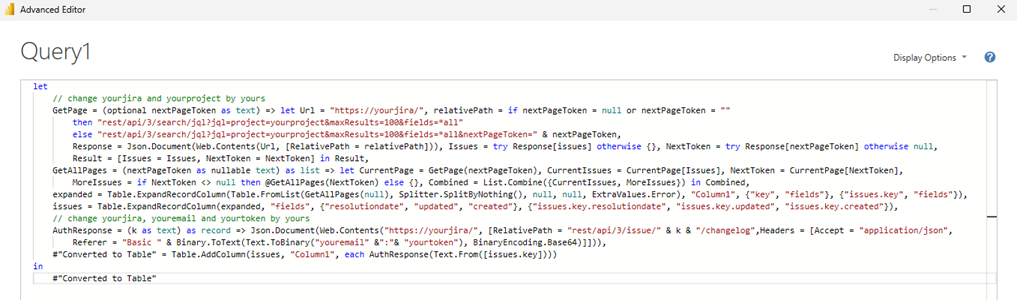
As for option 1, I will expand the column then click on “load more” and “OK”. To get multiple projects, replace “project=yourprojectkey” by “project%20IN%20(yourprojectkey1,yourprojectkey2)”
About the 2 types of columns:
- List: select “expand to new rows” if I want to have each value per row or select “extract values” if I want to have all values in 1 single row

NOTE: if “extract values” gives error values, it means that there are sub-columns so to see them, select “expand to new rows”. - Record: to display sub-columns of the main column

Interesting Topics
-

Be successfully certified ITIL 4 Managing Professional
Study, study and study, I couldn’t be successfully certified without studying it, if you are interested...
-
Be successfully certified ITIL 4 Strategic Leader
With my ITIL 4 Managing Professional certification (ITIL MP) in the pocket, it was time to go for the...
-

Hide visual and change background color based on selection
Some small tricks to customize the background colour of a text box...
-
Stacked and clustered column chart or double stacked column chart
In excel, I use a lot the combination of clustered and stacked chart...
-

Refresh Power BI
From the Power BI Service, I can set refresh but, for instance, there is no option to do it monthly or each time a change is made...
-
Power BI alerts to be sent by email from an excel file based on condition
I will explain how to send a list of emails from an excel file after creating alerts...
-

Count and check empty cells of filtered columns using a macro in an excel report
I use this macro to check if there are blank cells after I filtered...
-
Delete rows out of date using a macro in an excel report
In most of the reports, when I am doing the monthly one, I just need to keep all data that are in the month...
-
Find a specific value then insert a row and more things using a macro in an excel report
This VBA allows me to look for a specific value, it can be...
-
Execute a macro based on the day or time in an excel report
In some excel files, I am using a macro to tell it in which moment to do the report. For instance, if I am...
-
List unique values then combine in one single cell all data using a macro in an excel report
In one of my reports, I have to list from a column the unique values...
-

Copy/paste a range of values after finding the current date in an excel report
This script is to check and compare each cell of a specific column to...
-
Insert a row after finding a specific value in an excel report
This script allows to search a particular value, once find it, a new row will be inserted above or below...
-
Copy data between 2 sheets on top or bottom using an office script in an excel report
This online script allows me to copy the full data of a table to another...
-
Use a script to copy, cut, paste, replace and delete in an excel report (part 2)
This is the second part of my tutorial and it will be focused on...
-
Autofill from the last row using an office script in an excel report
This script will look for the last row then it will copy and paste the data to a number of rows below...
-

Calculate a weighted average for a SLA and a conversation time with a formula in an excel report
In one of my experiences, I had a tool that gave me the weighted average...
-
Search in different sheets then display the wanted data with a formula in an excel report
vlookup and hlookup are formulas that allow to search a data in another...
-
Find the good data by matching 3 different criterias with a formula in an excel report
It is a combination of “index” and “match” formulas, much better...
-
Sum and count sales with a formula in an excel report
Extracting data from salesforce or qlikview may not give the information I needed, it already happened...
Know how long a service is impacted with a formula in an excel report
It is important to know how long the service has been impacted by...